
Written by: Matt Beucler, CEO, Plura AI
Key Takeaways
- iPhone call screening in iOS 26 uses Siri to intercept unknown calls, capture the caller’s name and reason, and show a live transcript so users can decide whether to answer.
- The feature lives in Settings > Apps > Phone > Screen Unknown Callers and offers three modes: Never, Ask Reason for Calling, or Silence.
- Call screening works alongside Silence Unknown Callers and carrier spam filtering, giving users more context than older tools while still allowing legitimate callers to reach them.
- Businesses that rely on outbound calls face new friction because screening intercepts calls before they ring, which makes branded caller ID and clear call reasons critical for answer rates.
- Plura AI helps businesses handle screening with carrier-grade branded caller ID and AI voice agents. See how Plura AI can improve your outbound answer rates.
How iPhone Call Screening Works in iOS 26
iPhone call screening in iOS 26 reduces spam and unwanted calls while keeping you reachable to legitimate callers who are not in your contacts. When enabled, your iPhone automatically answers calls from unknown numbers before they ring. Siri introduces the call, asks the caller to state their name and reason for calling, and a live transcript appears on your screen in real time. You then decide whether to answer, decline, or let the screening continue.
The feature runs through the Phone app’s Screen Unknown Callers setting, which offers three options:
- Never, which lets calls ring normally
- Ask Reason for Calling, which activates call screening
- Silence, which sends calls to voicemail without ringing
Call screening is available in supported languages and regions, including English, French, German, Japanese, Mandarin, Portuguese, and Spanish variants. It does not work while roaming and turns off for 24 hours after you call emergency services. Call screening works with most major carriers that support visual voicemail. Users on smaller providers or MVNOs should verify carrier compatibility.
How to Turn On Call Screening on iPhone
You can turn on call screening in under a minute. Follow these steps:
- Open the Settings app on your iPhone.
- Tap Apps, then tap Phone.
- Scroll to Screen Unknown Callers and tap it.
- Select Ask Reason for Calling.
After you enable it, calls from numbers not saved in your Contacts are screened automatically. Call screening is off by default in iOS 26. Apple recommends saving important numbers such as family, school, or your doctor to Contacts so they bypass screening entirely. You can switch back to “Never” or “Silence” at any time.
How to Turn Off Call Screening on iPhone
If call screening is intercepting calls you want to receive, you can turn it off quickly:
- Open the Settings app.
- Tap Apps, then tap Phone.
- Scroll to Screen Unknown Callers.
- Select Never.
Selecting “Never” restores normal ringing for unknown numbers. Turning off call screening does not change separate controls such as Silence Unknown Callers, spam filtering, Focus modes, or blocked contacts. Those features continue to operate independently.
What Callers Experience When You Screen a Call
The caller’s experience matters, especially for outbound sales and service teams. When your iPhone screens a call, the sequence unfolds in a predictable way.
What the caller hears: After the call connects, the caller hears a message similar to: “Hi, you’ve reached [Your Name]. Siri is screening your call. Please say your name and why you’re calling.” The caller then speaks their response.
What you see: A live transcript appears on your iPhone screen in real time. You watch as the caller states their name and explains their reason for calling before your phone rings. You then have three options:
- Answer the call
- Decline it, which sends the caller to voicemail
- Let the screening continue while you decide
The caller knows the call is being screened. Call screening works well against robocalls because many automated systems cannot respond to open-ended questions. It can still feel impersonal for legitimate callers. A doctor’s office, a delivery driver, or a prospective client may not expect to explain themselves to an automated system, and some hang up instead of participating. For businesses making outbound calls, this behavior is a material concern because the outcome depends on how the caller responds to Siri’s prompt.
Comparing Call Screening, Silence Unknown Callers, and Spam Filtering
iOS 26 includes several tools for managing unknown callers. Each one plays a different role.
| Feature | What It Does | Best For |
|---|---|---|
| Call Screening (Ask Reason for Calling) | Answers unknown calls, asks the caller for name and reason, and shows a live transcript before the phone rings | Users who want context before answering unknown calls |
| Silence Unknown Callers | Sends unknown calls to voicemail without ringing. Live Voicemail transcribes the message if enabled. | Users who never want unknown calls to ring |
| Spam Filtering | Labels or silences calls identified by the carrier as spam and moves them to a separate Spam area in call history | Users who want carrier-level spam detection running in parallel |
Call Screening is the most interactive option and gives you a real-time decision point for every unknown call. Silence Unknown Callers, available since iOS 13, applies a blanket policy so unknown calls go straight to voicemail without ringing. There is no per-call choice. Spam Filtering runs at the carrier level and works independently of call screening. You can combine these features, such as enabling call screening for unknown numbers while carrier spam filtering handles robocalls.
How to Tell If Someone Is Screening Your Calls
Several signals suggest that the person you are calling has iPhone call screening enabled.
- A long pause before the call connects, because screening adds a delay while Siri answers and processes your response
- A robotic or automated voice asking for your name and reason for calling
- A connection where no one speaks, which means the recipient is watching your live transcript and deciding whether to answer
- A call that drops after you state your name, which means the recipient declined and sent you to voicemail
For businesses making outbound calls, these signs show that your call is passing through a screening layer. Whether the recipient answers depends on how clearly and credibly your caller responds to Siri’s prompt.
That is where a carrier-level solution like Plura AI becomes useful. See a live Plura demo to understand how branded caller ID helps screened calls convert to live conversations.
Troubleshooting iPhone Call Screening Issues
Users commonly report a few recurring issues with iPhone call screening. Each has a straightforward check.
Call screening option not appearing. Confirm your iPhone runs iOS 26 or later. Navigate to Settings > Apps > Phone and scroll to Screen Unknown Callers. If the option is missing, use the Settings search field to locate it.
Calls still ringing after enabling screening. Verify you selected “Ask Reason for Calling,” not “Never.” Confirm the caller is not saved in your Contacts, because call screening only applies to unknown numbers. Separate controls such as Focus modes, blocked contacts, and call forwarding can also affect behavior independently of the Screen Unknown Callers setting.
Call screening not working with your carrier. Apple states that call screening works with most major carriers that support visual voicemail. Users on smaller providers or MVNOs should check carrier compatibility directly. Call screening does not work while roaming.
Call screening too aggressive. If legitimate callers are being screened or you are missing calls, switch to “Never” or add important numbers to Contacts. You can also use “Silence” if you prefer calls to go straight to voicemail without the screening prompt.
Why your iPhone is screening calls. If you did not enable it, check whether someone else with access to your phone changed the setting or whether you enabled it during iOS 26 setup. The setting is located at Settings > Apps > Phone > Screen Unknown Callers.
Privacy and Security Context for Call Screening
iPhone call screening responds to the scale of the robocall problem. U.S. consumers received 52.5 billion robocalls in 2025, averaging about 4.4 billion per month, and the FTC received more than 2.6 million Do Not Call complaints in fiscal year 2025.2,3 The FCC has identified unwanted calls as a top consumer protection priority.2
Call screening still has clear limits. A July 2020 Pew Research Center survey of 10,211 U.S. adults found that 80% do not generally answer calls from unknown numbers, which explains why screening tools have become mainstream. Yet even with screening, spam still gets through. Some robocalls use spoofed numbers that evade detection, and the feature does not prevent robocalls from reaching the screening prompt. It also cannot stop social-engineering scams that occur after a caller gets through. For consumers, this tradeoff often feels acceptable. For businesses, the impact on outbound reach rates requires a more deliberate strategy.
How Plura AI Supports Outbound Teams in a Screening World
iPhone call screening benefits consumers and introduces measurable challenges for outbound sales, collections, and service teams. When your sales team calls a prospect with screening enabled, Siri intercepts the call. The prospect sees a live transcript of your name and reason for calling, if they allow the screening to complete. Many prospects never reach that point because they already avoid unknown calls at high rates.
Plura AI addresses this problem at the carrier level. Plura is its own FCC-licensed audio bridging carrier and issues branded caller ID directly at the carrier layer. When Plura AI voice agents call prospects, the call presents with your company’s name and a clear reason for calling instead of an unfamiliar number or a “Spam Likely” label. STIR/SHAKEN (Secure Telephone Identity Revisited/Signature-based Handling of Asserted information using toKENs) authentication runs on every outbound call, which destination carriers use as one signal of legitimate origination.1,2
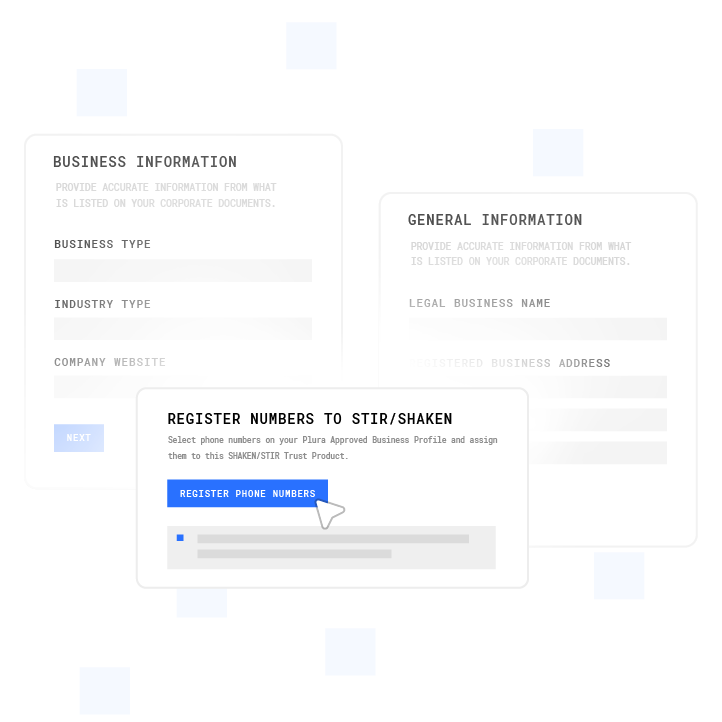
For high-volume outbound teams, Plura’s AI Predictive Dialer increases productive talk time by connecting agents only to live humans. Agents avoid idle time on voicemails or screened calls that never convert to conversations. Real-time DNC (Do Not Call) scrubbing and TCPA (Telephone Consumer Protection Act) compliance support are built into the platform on every outbound contact.1,2 Plura runs on 100% U.S. infrastructure, and its compliance engine enforces quiet-hours rules automatically through time-zone detection. Plura supports compliance efforts, and customers remain responsible for their own regulatory obligations.
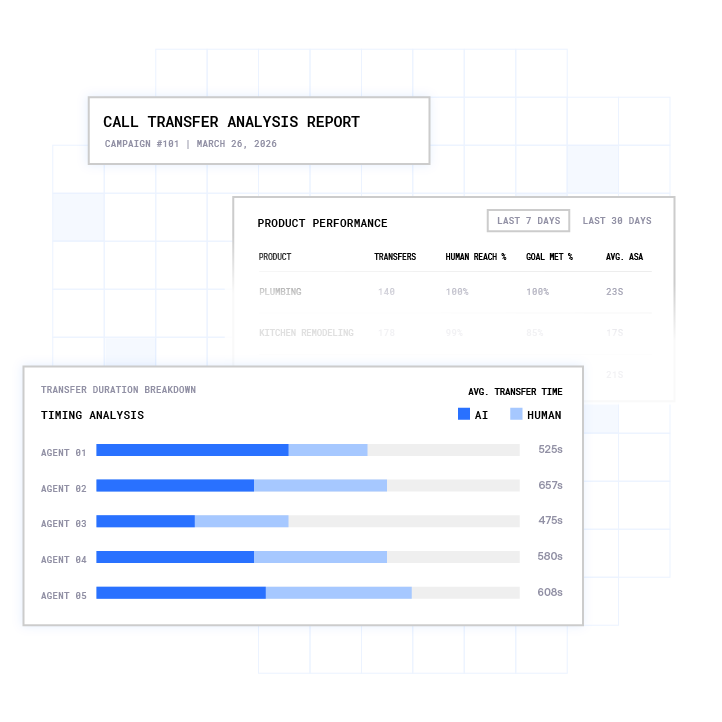
Businesses that need 24/7 call answering can use Plura’s AI voice agents to handle inbound and outbound calls with natural conversation, qualification, and live transfer to human agents. The platform’s Stateful Conversation Database holds context across every channel, so an agent who texted a lead at 9 a.m. can pick up the call at noon already knowing what was said. You can compare Plura plans and rates or use the ROI calculator to model cost and productivity against a traditional contact-center model.
Conclusion
iPhone call screening in iOS 26 gives consumers a practical way to filter spam and unknown calls while staying reachable to legitimate callers. It works alongside Silence Unknown Callers and carrier-level spam filtering and puts the recipient in control of each unknown call before the phone rings. For businesses that depend on outbound calling, screening creates a new barrier to reaching customers that calls for a carrier-level strategy.
A clear understanding of how call screening behaves on both sides of the call helps you interpret answer rates and adjust your outbound playbook. If you manage outbound operations and are seeing reduced connection rates, schedule a Plura AI walkthrough to see how branded caller ID and AI voice agents on an FCC-licensed carrier can help more of your calls get answered.
Frequently Asked Questions
Does iPhone call screening work on all iPhone models?
iPhone call screening is available on iPhone models running iOS 26 or later. You can access it via Settings > Apps > Phone > Screen Unknown Callers. It works with most major carriers that support visual voicemail. Users on smaller carriers or mobile virtual network operators (MVNOs) should confirm compatibility with their provider directly. Call screening does not function while roaming and is automatically disabled for 24 hours after a user calls emergency services.
How can businesses reduce the impact of iOS 26 call screening?
Businesses see better results when they present a recognizable caller identity at the carrier level. When a call arrives with a branded company name and a clear reason for calling, the recipient sees that information in the live transcript and is more likely to answer. Platforms that issue branded caller ID directly through an FCC-licensed carrier, and that authenticate calls through STIR/SHAKEN, give destination carriers more context about call origination. Getting a prospect to save your number in their contacts also removes screening for that contact, which many sales teams treat as an early relationship milestone.
What is the difference between iOS 26 call screening and Silence Unknown Callers?
Silence Unknown Callers, available since iOS 13, applies a blanket policy where every call from a number not in your Contacts, Mail, or Messages goes straight to voicemail without ringing. There is no per-call decision point and no context for the recipient. iOS 26 call screening, specifically the “Ask Reason for Calling” option, creates an interactive middle ground. The iPhone answers the call before it rings, Siri asks the caller to identify themselves and state their reason, and the recipient sees a live transcript and decides whether to answer. Call screening provides information and a choice on each call, while Silence Unknown Callers removes both.
Does call screening stop all spam calls?
Call screening reduces unwanted calls but does not eliminate them. As covered earlier, spoofed numbers can still reach the prompt, and social-engineering scams can occur after a caller passes screening. It works best as one layer in a broader approach that also includes carrier-level spam filtering and, where appropriate, saving important numbers to Contacts so they bypass screening.
How does iOS 26 call screening affect outbound sales and contact center operations?
For high-volume outbound operations, iOS 26 call screening adds friction at the point of contact. When a prospect has screening enabled, Siri intercepts the call before the phone rings. The prospect sees a live transcript of the caller’s name and reason for calling and then decides whether to answer. Callers who do not present a recognizable identity, or who are calling from a number flagged as spam, face a higher risk of being declined or sent to voicemail. Contact center leaders and marketing directors managing outbound campaigns are seeing this reflected in reduced answer rates. A practical response includes presenting branded caller ID issued at the carrier level, authenticating through STIR/SHAKEN, and using a clear, credible reason for calling that reads well in a live transcript.
1 Plura AI maintains SOC 2, HIPAA, ISO, and GDPR posture as part of its platform infrastructure. References to compliance frameworks in this article describe Plura’s platform capabilities and do not constitute a guarantee that any customer using Plura will themselves be compliant with applicable laws or standards. Customers remain solely responsible for their own regulatory obligations, certifications, consent management, recordkeeping, and the claims they make to their own end users. Consult qualified legal counsel for guidance specific to your use case.
2 This article describes regulatory frameworks at a general level and does not constitute legal advice. Laws and regulations vary by jurisdiction, change over time, and apply differently depending on facts and circumstances. Readers should consult qualified legal counsel before making compliance decisions.
3 Performance figures, customer outcomes, and industry statistics referenced in this article are drawn from cited third-party sources or Plura customer case studies. Individual results vary based on implementation, use case, industry, audience, and execution. Past or aggregate performance is not a guarantee of future results.
This article is provided for informational purposes only and reflects Plura AI’s understanding at the time of publication. Product capabilities, integrations, and specifications are subject to change. For the most current information, visit plura.ai.
This article was produced with the assistance of AI tools and reviewed by Plura AI prior to publication.