
Written by: Matt Beucler, CEO, Plura AI
Key Takeaways
- iOS 26 introduces Screen Unknown Callers, which replaces the older Silence Unknown Callers toggle with three options: Never, Ask Reason for Calling, and Silence.
- You can adjust Screen Unknown Callers under Settings > Apps > Phone > Screen Unknown Callers. The feature requires iOS 26 and may not appear in every region.
- The Ask Reason for Calling mode prompts unknown callers to state their purpose before the phone rings and shows a live transcript so users can decide whether to answer.
- Businesses that run high-volume outbound calls see an average 22% drop in connect rates from iOS 26 screening, which makes branded caller ID and clear call identity critical.
- Businesses can mitigate screening by presenting a branded caller ID and using AI voice agents that clearly state who is calling and why at the carrier level.
How iOS Call Screening Works on iPhone
Screen Unknown Callers is an iOS 26 feature that controls how incoming calls from unknown numbers are handled on iPhone. It applies to numbers that are not saved in Contacts, not present in Recents, and not surfaced by Siri Suggestions.
Screen Unknown Callers is distinct from the older Silence Unknown Callers feature. In iOS 13 through iOS 17, Silence Unknown Callers used a single toggle that sent unknown callers straight to voicemail. Starting with iOS 18, Apple expanded that toggle into three modes: Never, Ask Reason for Calling, and Silence. In iOS 26, Apple renamed the feature Screen Unknown Callers and kept those same three options, which gives users more granular control over how unrecognized numbers are handled before the phone rings.
The Three Screen Unknown Callers Options: Never, Ask Reason for Calling, and Silence
Each option in Screen Unknown Callers produces a different outcome for the caller and the iPhone user.
| Option | What Happens | Best For |
|---|---|---|
| Never | Calls from unknown numbers ring normally. No screening occurs. | Users who receive important calls from unrecognized numbers and want a standard, uninterrupted call flow. |
| Ask Reason for Calling | Siri or an automated assistant prompts the caller to state their name and reason for calling. A live transcript appears on screen before the phone rings so the user can decide whether to answer. | Users who want to screen calls intelligently while still allowing legitimate unknown callers to reach them. |
| Silence | Calls from unknown numbers are sent directly to voicemail without ringing. A missed call notification appears, and the caller can leave a voicemail. | Users who prefer to review all unknown calls later and respond on their own schedule. |
How to Enable Call Screening on iPhone (iOS 26)
Use these steps to turn on call screening:
- Open Settings on your iPhone.
- Tap Apps.
- Tap Phone.
- Tap Screen Unknown Callers.
- Select Ask Reason for Calling or Silence to enable screening.
If the Screen Unknown Callers option is not visible, check that your iPhone is updated to iOS 26. Availability also varies by country, so some regions may not show the feature yet.
How to Disable Call Screening on iPhone
To turn off call screening entirely, go to Settings > Apps > Phone > Screen Unknown Callers and select Never. This restores normal ringing behavior for all incoming calls, including those from unknown numbers.
If you want to keep screening for most unknown numbers but silence only certain callers, Focus modes can help. You can configure a Focus mode to allow calls only from specific groups, which keeps Screen Unknown Callers active while giving you tighter control over who can reach you. You can also block or silence individual numbers directly from the Phone app without changing the global Screen Unknown Callers setting.
If your business sits on the other end of these screened calls, the impact on reach and revenue can be significant. Learn how Plura AI helps businesses reach screened callers with branded caller ID and AI voice agents.
Why Isn’t My iPhone Screening Calls Anymore?
Several conditions can cause Screen Unknown Callers to stop working as expected. Work through the following checks in order, from the most common cause to the least:
- Confirm the setting is still active. Go to Settings > Apps > Phone > Screen Unknown Callers and verify the selected option is Ask Reason for Calling or Silence.
- Check whether the caller is already known to your iPhone. Screen Unknown Callers only applies to numbers not in Contacts, Recents, or Siri Suggestions. If the caller appears in any of those sources, the phone rings normally.
- Verify your iOS version. Screen Unknown Callers requires iOS 26. Go to Settings > General > Software Update to confirm your device is current.
- Test with a known unknown number. Call your iPhone from a number that is not saved anywhere on the device to confirm whether screening is active. If it works in that test, the original caller’s number was likely recognized by the system.
- Restart the iPhone. A device restart often resolves transient settings issues.
- Contact your carrier. If the issue persists after these steps, network-side configurations may affect call handling before the phone rings.
How Do I Stop iPhone from Screening Calls on Its Own?
Unexpected screening usually comes from a feature other than Screen Unknown Callers. Three common culprits are worth checking:
- Silence Unknown Callers (legacy toggle). This older setting, if still active, sends unknown callers to voicemail regardless of the Screen Unknown Callers configuration. Check Settings > Apps > Phone to confirm its status.
- Focus modes. An active Focus mode can silence calls from contacts outside an allowed list. Go to Settings > Focus and review which modes are enabled and what call permissions they use.
- Carrier-level spam filtering. If a caller’s number is labeled as spam by the carrier, the phone may screen or silence the call even when Screen Unknown Callers is set to Never. This occurs on the network and device settings cannot override it.
Turning each of these off in sequence will isolate which feature is causing the unexpected behavior.
What “Ask Reason for Calling” Does in Practice
When Screen Unknown Callers is set to Ask Reason for Calling, the iPhone prompts the caller to state why they are calling before the call rings through. The caller hears an automated message asking them to explain their purpose.
When Live Voicemail is enabled and a caller is sent to voicemail, their spoken response appears as a real-time transcription on the iPhone screen as they leave a message. The user reads the transcript in real time and decides whether to answer, decline, or let the call go to voicemail. In Ask Reason for Calling mode, the iPhone screens calls from unknown numbers and rings only after the caller provides their name and reason. The user then decides whether to accept the call.
This option adds one step for callers and gives users enough context to make an informed decision about each unknown call while still catching calls that matter.
The Business Impact of iOS Call Screening on Outbound Calls
Outbound teams that rely on phone conversations feel iOS 26 call screening directly in their connect rates. Industry data cited by Plura AI indicates that iOS 26 call screening reduces connect rates by 22% for legitimate businesses.3 That reduction compounds across every campaign, every sales cycle, and every customer service follow-up your team runs.
The underlying consumer behavior driving that number is well documented. A July 2020 Pew Research Center survey of 10,211 U.S. adults found that 80% say they do not generally answer their cellphone when an unknown number calls.4 That reluctance extends beyond annoyance. An FCC rulemaking record on advanced robocall elimination methods cites a consumer survey indicating that 90% of consumers are uncomfortable answering unidentified calls and that 78% of consumers have missed an important call in the last month because they did not answer an unidentified call.4
For sales teams, contact centers, and agencies running high-volume outbound operations, those numbers translate directly into missed revenue. A call that never connects means a lead goes unconverted, a renewal goes unclosed, and a customer service issue goes unresolved.
How Plura AI Helps Businesses Get Through iOS Call Screening
Plura AI addresses the call screening problem at the carrier level, which is the only layer where teams can influence how calls present consistently. Plura issues branded caller ID directly through its own FCC-licensed carrier. Its AI voice agents communicate with iOS 26’s call-screening layer so calls present with the company’s name and reason for calling instead of an unidentified number.
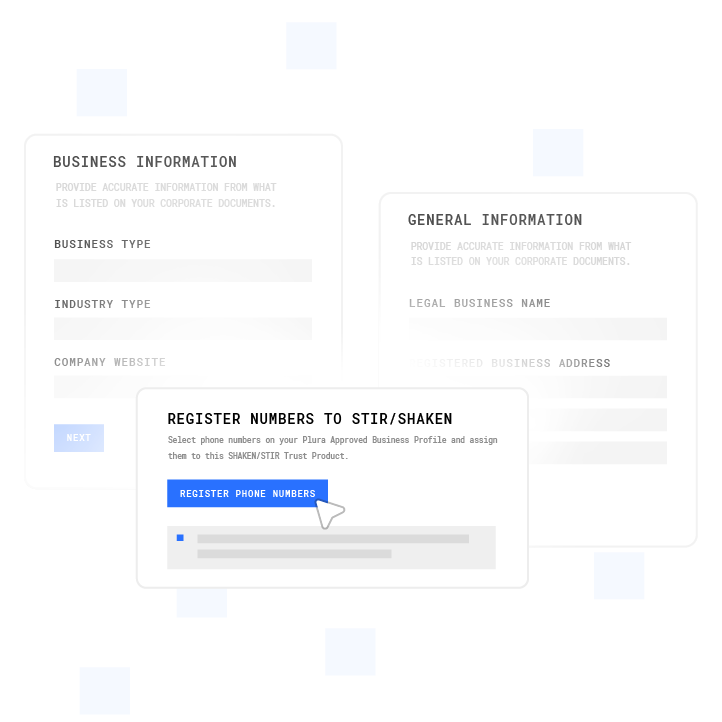
The impact of branded caller ID on answer rates is significant. TransUnion states that customers are up to 105% more likely to answer a branded call.3 For high-volume outbound operations, that lift translates directly into pipeline and revenue.
Plura’s AI Predictive Dialer and AI voice agents are built for the scale and compliance requirements of contact centers, agencies, and enterprise sales teams. STIR/SHAKEN (Secure Telephone Identity Revisited/Signature-based Handling of Asserted information using toKENs) authentication runs on every outbound call, and real-time DNC (Do Not Call) scrubbing is enforced before each dial inside the platform.1,2 Plura supports compliance efforts, but customers remain responsible for their own regulatory obligations and certifications.
Most Twilio-based API resellers cannot replicate this because they do not own the carrier.4 They inherit the caller ID reputation of the CPaaS (Communications Platform as a Service) they rent from, rather than building their own reputation. Plura owns its carrier stack, which makes branded caller ID and carrier-level spam remediation possible.
Watch Plura AI handle a screened call in a live demo and see how AI voice agents convert screened calls into answered calls.
Frequently Asked Questions
How do I turn off call screening on iPhone?
Go to Settings > Apps > Phone > Screen Unknown Callers and select “Never.” This disables screening entirely. Calls from unknown numbers will ring normally, and no automated prompts will be presented to callers.
Why isn’t my iPhone screening calls anymore?
As covered in the troubleshooting section above, the most common causes are an inactive setting, a caller already known to your device, or an outdated iOS version. If you have worked through those checks and the issue persists, restart your iPhone or contact your carrier, since network-side configurations can affect call handling before the device is involved.
What is the difference between Silence Unknown Callers and Screen Unknown Callers?
Silence Unknown Callers is an older iOS feature that sends all calls from unknown numbers directly to voicemail without ringing. Screen Unknown Callers, introduced in iOS 26, replaces that single toggle with three options: Never (calls ring normally), Ask Reason for Calling (callers are prompted to state their purpose before the phone rings), and Silence (calls go to voicemail). Screen Unknown Callers gives users more control over how each unknown call is handled.
Does call screening block unknown numbers?
Call screening does not block calls. With “Silence,” calls are routed to voicemail and the caller can leave a message. With “Ask Reason for Calling,” the caller is prompted to identify themselves and state their purpose before the phone rings. With “Never,” calls ring normally. In all three cases, the caller can still reach the voicemail system.
How can I make sure my business calls aren’t screened?
The most reliable approach is presenting a branded caller ID and a verified identity at the carrier level. Plura AI issues branded caller ID through its own FCC-licensed carrier, so calls display your company name and reason for calling instead of an unrecognized number. Its AI voice agents communicate with iOS 26’s screening layer directly, which helps calls pass through screening rather than being intercepted. Businesses that rely on Twilio-based tools typically cannot achieve this because they do not control the caller ID at the carrier level.4
Conclusion: Turning Screened Calls into Real Conversations
iOS 26’s Screen Unknown Callers feature gives consumers three clear options for managing unknown calls: Never, Ask Reason for Calling, and Silence. The settings path is straightforward (Settings > Apps > Phone > Screen Unknown Callers), and most issues can be resolved by checking the active setting, confirming whether the caller is known to the device, and reviewing competing features like Focus modes or carrier-level spam filters.
For consumers, managing these settings keeps control of inbound calls in their hands.
For businesses making outbound calls, the combination of iOS 26 screening and consumer reluctance to answer unknown calls creates a structural headwind for any operation that cannot present a recognized identity. Carrier-level branded caller ID and AI voice agents that communicate directly with the screening layer give outbound teams a practical way to reach customers who would otherwise let calls go unanswered.
Plura’s AI Predictive Dialer and AI voice agents are built for this environment and support compliance for contact centers, agencies, and enterprise sales teams. Run your numbers through Plura’s ROI calculator to see what improved connect rates mean for your pipeline, or compare plans and rates side by side.
Schedule a demo to see Plura AI convert screened calls into revenue with branded caller ID and AI voice agents.
1 Plura AI maintains SOC 2, HIPAA, ISO, and GDPR posture as part of its platform infrastructure. References to compliance frameworks in this article describe Plura’s platform capabilities and do not constitute a guarantee that any customer using Plura will themselves be compliant with applicable laws or standards. Customers remain solely responsible for their own regulatory obligations, certifications, consent management, recordkeeping, and the claims they make to their own end users. Consult qualified legal counsel for guidance specific to your use case.
2 This article describes regulatory frameworks at a general level and does not constitute legal advice. Laws and regulations vary by jurisdiction, change over time, and apply differently depending on facts and circumstances. Readers should consult qualified legal counsel before making compliance decisions.
3 Performance figures, customer outcomes, and industry statistics referenced in this article are drawn from cited third-party sources or Plura customer case studies. Individual results vary based on implementation, use case, industry, audience, and execution. Past or aggregate performance is not a guarantee of future results.
4 References to third-party products, services, companies, or research are made for informational and comparative purposes only. Plura AI is not affiliated with, endorsed by, or sponsored by any third party named in this article unless explicitly stated. Trademarks and product names referenced remain the property of their respective owners.
This article is provided for informational purposes only and reflects Plura AI’s understanding at the time of publication. Product capabilities, integrations, and specifications are subject to change. For the most current information, visit plura.ai.
This article was produced with the assistance of AI tools and reviewed by Plura AI prior to publication.